How Macro Security Settings Work Behind the Scenes
Macro security settings do not scan files for malware; they block execution based on file origin and trust status, creating a gap where trusted files can still run harmful code.

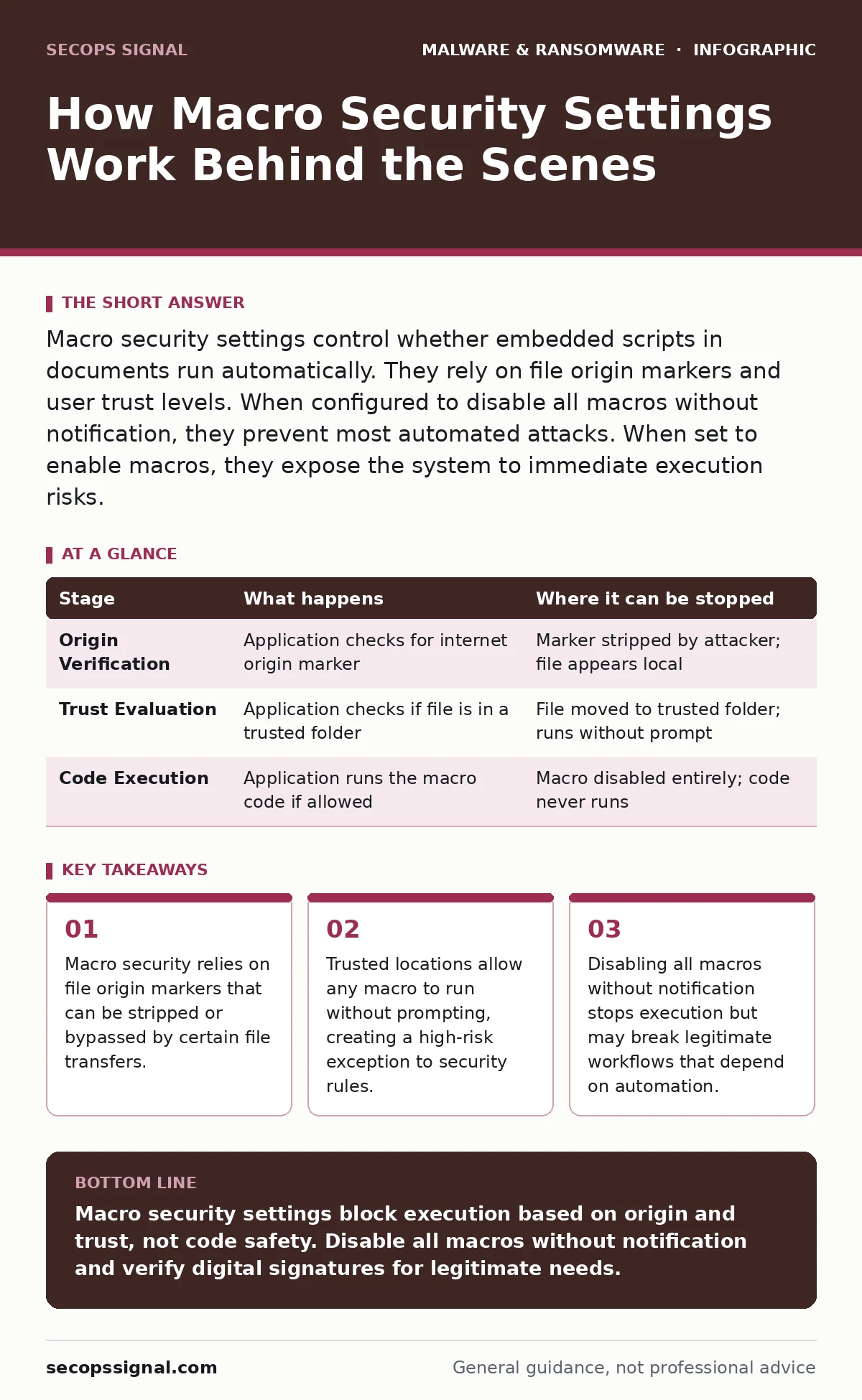
Macro security settings control whether embedded scripts in documents run automatically. They rely on file origin markers and user trust levels. When configured to disable all macros without notification, they prevent most automated attacks. When set to enable macros, they expose the system to immediate execution risks.
The Execution Chain Begins
When you open a document containing macros, the application does not immediately run the code. It first checks the security settings configured in your office suite. These settings determine whether the code is allowed to execute, whether it is blocked, or whether you are prompted to allow it. This decision happens before the document content is fully rendered. The application looks for a specific marker attached to the file.
This marker indicates where the file came from. If the file originated from the internet, the application treats it as untrusted. If the file was created locally or downloaded from a trusted source, it may be treated differently. This initial check is the first line of defense against macro malware. It prevents automatic execution of code that you did not explicitly request.
Stage 1: Origin Verification
Stage 1: Checking File Markers
The application examines the file’s metadata for an origin marker. This is a hidden tag added by your operating system when a file is downloaded from the web. It tells the application that the file is not native to your device. If this marker is present, the application assumes the file is untrusted. It will not run any embedded code unless you explicitly allow it.
This mechanism relies on the integrity of the marker. If the marker is removed, the application treats the file as if it was created on your computer. This is a critical weakness. Attackers can use tools to strip this marker, making a malicious file appear local. Without the marker, the security setting that blocks untrusted files becomes ineffective. The application has no way to know the file is actually dangerous.
Stage 2: Trust Evaluation
Stage 2: Checking Trusted Sources
If the origin marker is missing or the file is marked as local, the application checks if the file resides in a trusted location. Trusted locations are specific folders on your computer that you or an administrator have designated as safe. Any macro in these folders runs without warning. This is convenient for legitimate business processes but dangerous if misconfigured.
If a user moves a malicious file into a trusted folder, the macro runs immediately. The application does not scan the code for malicious intent. It trusts the location, not the content. This is why trusted locations are a common target for attackers. Once they gain access to a folder, they can bypass all macro security prompts. You must audit these locations regularly to ensure they contain only safe files.
| Stage | What happens | Where it can be stopped |
|---|---|---|
| Origin Verification | Application checks for internet origin marker | Marker stripped by attacker; file appears local |
| Trust Evaluation | Application checks if file is in a trusted folder | File moved to trusted folder; runs without prompt |
| Code Execution | Application runs the macro code if allowed | Macro disabled entirely; code never runs |
Stage 3: User Interaction
Stage 3: Prompting for Permission
If the file is untrusted and not in a trusted location, the application may prompt you. This depends on your security settings. If set to "Enable all macros," the code runs silently. This is the most dangerous setting. It gives attackers immediate access to your system. If set to "Disable all macros with notification," you see a warning bar. You must click to enable the content.
This adds a step for attackers. They must trick you into clicking. This relies on your judgment. Phishing emails often create urgency to bypass your caution. If you click enable, the macro runs. The application does not check if the code is safe. It assumes you have verified the source. This is where social engineering succeeds. The technical control is bypassed by human error.
Stage 4: Code Execution
Stage 4: Running the Script
Once allowed, the macro code executes within the application’s environment. It has access to the application’s features. It can read other files, send emails, or run system commands. This is how macro malware spreads. It uses the application to move laterally across your network. The code runs with the permissions of your user account. If you have admin rights, it has full control. This is why least privilege is important. Limiting user rights reduces the damage a macro can do. The application does not sandbox the macro by default. It runs in the same process as the document. This means a crash or exploit can affect the entire application. The lack of isolation is a significant risk.
Limits of Macro Security
Macro security settings are not a scanner. They do not analyze the code for malicious patterns. They only control whether the code is allowed to run. This means a well-written macro that looks safe can still do harm. The settings rely on assumptions about file origin and location. Both can be manipulated. Attackers know this. They use techniques to bypass these checks.
This is why email attachment scanning is necessary. It looks for known malicious signatures before the file reaches your desktop. However, new macros often evade signature-based detection. This is where managed detection and response (MDR) helps. It monitors for unusual behavior after execution. If a macro starts connecting to a strange server, MDR can stop it. But this is reactive. Prevention is better.
Configuring for Safety
To maximize protection, disable all macros without notification. This stops any macro from running automatically. It also stops the prompt, removing the social engineering vector. This may break some legitimate workflows. You must identify which documents require macros and whitelist them carefully. Do not use trusted locations for this. Instead, use digital signatures. A digitally signed macro comes from a known publisher.
You can trust the signature, not the file location. This is more secure than trusting a folder. However, attackers can steal valid signatures. This is why you should combine methods. Use disabled macros, digital signatures, and offline backups for critical data. If a macro does run, your backups ensure you can restore clean files. This defense-in-depth approach reduces risk.
The Hidden Cost of Convenience
The main cost of strict macro security is workflow disruption. Employees may struggle to open legitimate files. This leads to pressure to relax settings. This is a common mistake. Users ask IT to enable macros for convenience. This creates a permanent vulnerability. Instead, educate users on why macros are dangerous. Show them how to identify suspicious requests. Train them to verify with the sender through a different channel.
This reduces the need for prompts. It also reduces the attack surface. You are not just blocking code. You are changing behavior. This is harder than configuring a setting. But it is more effective. Ransomware backups are your last line of defense. If a macro runs and encrypts your files, you need a way to recover. Ensure your backups are offline and tested. This ensures you can survive an attack.
Beyond Basic Settings
Macro security is just one layer. It works best with other controls. Email attachment scanning blocks known threats before they arrive. Fake software updates often use macros to deliver payloads. Being aware of these tactics helps you recognize them. Malvertising can also lead to macro-laden files. Understanding the full attack chain helps you defend against it. Bootkits are a different threat.
They infect the boot process, not documents. But they show that threats evolve. You must adapt your defenses. Do not rely on a single control. Combine macro settings with user training, email filtering, and backup strategies. This creates a resilient system. It can withstand attacks that bypass one layer. Security is not a product. It is a process. Keep it updated and tested.
Key takeaways
- Macro security relies on file origin markers that can be stripped or bypassed by certain file transfers.
- Trusted locations allow any macro to run without prompting, creating a high-risk exception to security rules.
- Disabling all macros without notification stops execution but may break legitimate workflows that depend on automation.
Macro security settings block execution based on origin and trust, not code safety. Disable all macros without notification and verify digital signatures for legitimate needs.
Frequently asked questions
Can I trust macros from known publishers?
Digital signatures add trust, but attackers can steal valid certificates. Verify the signature manually and ensure it matches the expected publisher.
Why does the origin marker disappear?
Some email clients and file transfers strip metadata. This makes downloaded files appear local, bypassing origin checks.
Should I use trusted locations for business files?
Trusted locations bypass all prompts. They are risky if misconfigured. Use digital signatures instead for verified business macros.
Does disabling macros stop all malware?
No. It stops macro-based execution. Other malware types, like bootkits or exploit kits, do not use macros. Use layered defenses.
How this guide was produced: written by the SecOps Signal editorial team with AI assistance, checked against the public references listed below, and reviewed when the facts change. See our editorial policy or report an error.