How to Implement Offline Backups: Air-Gapped Storage Protocol
True offline backups require physical disconnection from your network to prevent ransomware from encrypting or deleting your only recovery copies.

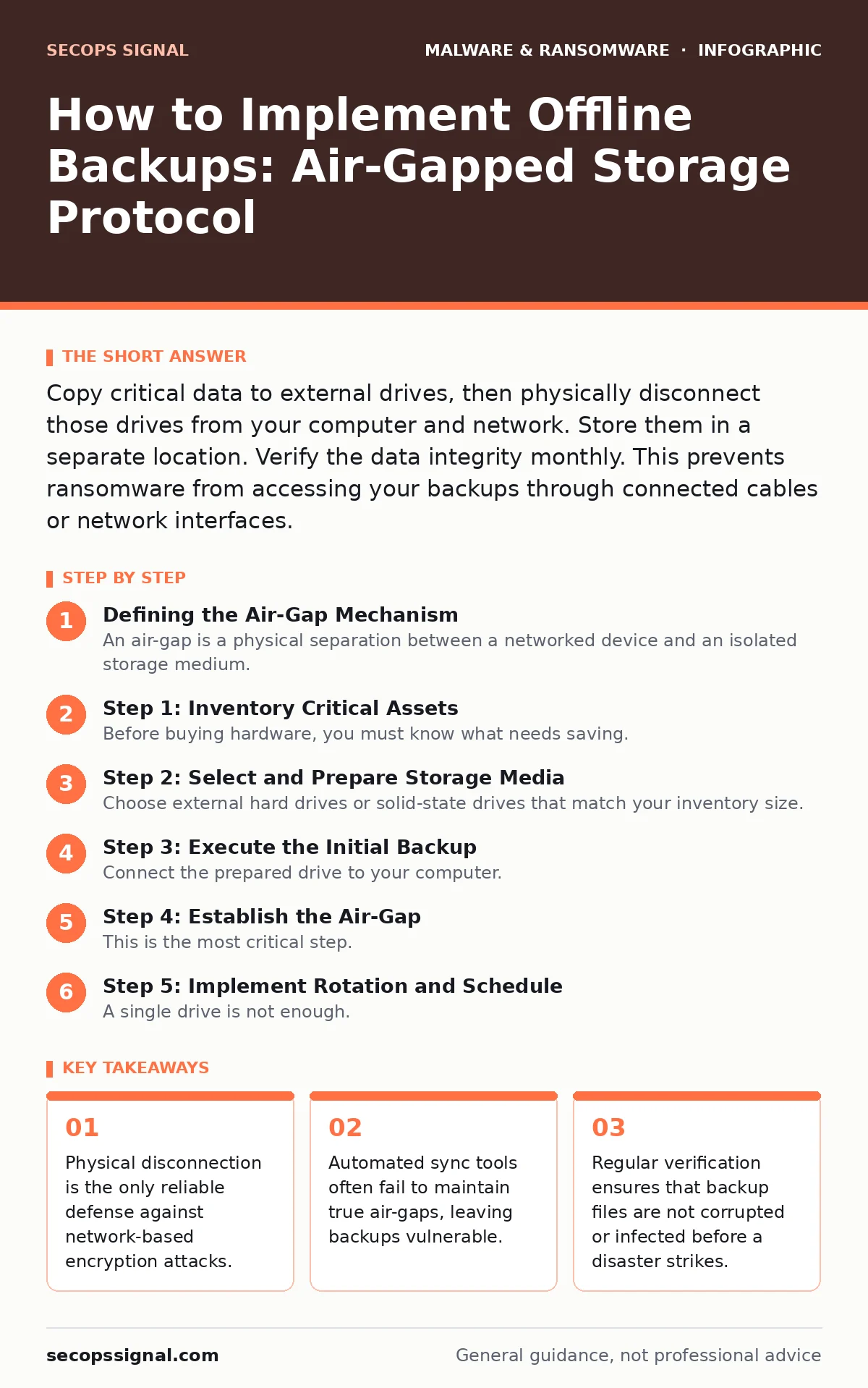
Copy critical data to external drives, then physically disconnect those drives from your computer and network. Store them in a separate location. Verify the data integrity monthly. This prevents ransomware from accessing your backups through connected cables or network interfaces.
Defining the Air-Gap Mechanism
An air-gap is a physical separation between a networked device and an isolated storage medium. This separation ensures that no electronic signal can travel between your active system and your backup. Ransomware operates by traversing network connections and accessible drives. If your backup drive is plugged into a computer that is connected to the internet, the malware can reach it. The air-gap breaks this path.
Imagine you have a file server that gets infected. If your backup drive is connected via USB, the malware can encrypt that drive too. This is why many standard backup solutions fail. They treat the backup drive as just another accessible volume. You must treat it as a sealed vault. The goal is to make the backup data inaccessible to any software running on your primary systems.
This approach differs significantly from cloud backups or network-attached storage. While those methods offer convenience, they present a digital pathway for attackers. Your guide to ransomware backups must prioritize physical isolation over convenience. The trade-off is speed. Restoring from an air-gapped drive is slower than restoring from a local network drive. You accept this speed penalty to guarantee data survival.
Step 1: Inventory Critical Assets
Before buying hardware, you must know what needs saving. List the files and databases that are irreplaceable. Exclude temporary files, caches, and applications that can be reinstalled. Focus on user data, configuration files, and unique business records. This inventory determines the storage capacity you need.
Do not attempt to back up your entire operating system image if you do not have the storage space. Prioritize the data that would cause immediate operational failure if lost. This step prevents the common error of filling a drive with junk data, leaving no room for critical files. It also simplifies the restoration process later.
Step 2: Select and Prepare Storage Media
Choose external hard drives or solid-state drives that match your inventory size. Buy more capacity than you currently need. This allows for versioning and future growth without buying new hardware. Format the drives using a standard file system like NTFS or APFS. Avoid proprietary encryption formats that require specific software to read, unless you are certain you will have that software available during a disaster.
Initialize the drives with a clear label. Write the contents and date on the physical casing. This prevents confusion when you need to restore specific versions of data. Do not rely on digital labels alone, as these can be corrupted or changed by malware. Physical labeling is a simple but effective layer of verification.
Step 3: Execute the Initial Backup
Connect the prepared drive to your computer. Use a standard backup utility to copy your critical assets to the drive. Perform a full backup, not an incremental one, for the first run. This ensures you have a complete baseline. Monitor the process to ensure no errors occur. If files fail to copy, note them and retry.
Once the copy is complete, verify the file count and size against your source. This is your first check. If the numbers do not match, repeat the process. Do not proceed until the backup is confirmed complete. This step establishes the known good state of your data.
Step 4: Establish the Air-Gap
This is the most critical step. Safely eject the drive from your computer. Physically unplug the USB cable. Place the drive in a secure, offline location. Do not leave it in a drawer next to your computer. Store it in a fireproof safe or a different building if possible. This physical separation is what defines the backup as offline.
Step 5: Implement Rotation and Schedule
A single drive is not enough. You need at least two drives to allow for rotation. Connect Drive A, perform the backup, disconnect it, and store it. Next week, connect Drive B, perform the backup, and disconnect it. Rotate between them. This ensures you always have a previous version of your data that might be clean, even if the most recent backup was taken just before an infection.
Create a calendar reminder for this task. Consistency is key. Missed backups create gaps in your recovery timeline. The rotation schedule should align with your business cycle. If your data changes daily, back up daily. If it changes weekly, back up weekly. Match the frequency to the risk.
Step 6: Verify Integrity Regularly
A backup is useless if the files are corrupted. Schedule a monthly verification. Connect the stored drive to a clean, isolated computer. Do not connect this computer to the internet. Check a sample of files to ensure they open correctly. Verify that the file dates and sizes match your records. This process confirms that the data is readable and intact.
This verification is non-negotiable. You cannot assume the backup worked just because the software said it did. Hardware errors can corrupt data silently. Regular checks catch these issues before you need the data.
Maintenance and Upkeep Procedures
Over time, drives can degrade. Replace external drives every three to five years, regardless of health reports. Technology becomes obsolete. Ensure your backup utility is compatible with your operating system updates. If you change computers, you must reformat and re-backup your drives.
Keep your backup instructions written down and stored offline. In a crisis, you may not remember the steps. Include information on which drives contain which dates. This documentation reduces stress and errors during recovery. Refer to our section on bootkits to understand why keeping your recovery tools clean is also necessary.
Key takeaways
- Physical disconnection is the only reliable defense against network-based encryption attacks.
- Automated sync tools often fail to maintain true air-gaps, leaving backups vulnerable.
- Regular verification ensures that backup files are not corrupted or infected before a disaster strikes.
Frequently asked questions
Can I use a network-attached storage device as an offline backup?
No, as long as it is connected to your network, it is accessible to malware. True offline backups require physical disconnection from all networks and computers.
How often should I rotate my backup drives?
Rotate them based on your data change frequency. Daily or weekly rotation is common for most small businesses to ensure recent data is protected.
What if I lose my physical backup drive?
You should have at least two rotation drives. If one is lost, you still have the other. Consider storing one drive in an off-site location to protect against theft or fire.
Does cloud storage count as an offline backup?
No, cloud storage is online and accessible via the internet. Ransomware can sometimes access cloud accounts if credentials are stolen. Cloud is a supplement, not an air-gap. BOTTOM LINE: Physical disconnection is the only way to guarantee your backups survive a ransomware attack. Start your rotation schedule today and verify your first drive this month.
How this guide was produced: written by the SecOps Signal editorial team with AI assistance, checked against the public references listed below, and reviewed when the facts change. See our editorial policy or report an error.