Detecting Bootkits: Signs, Tools, and Hidden Blind Spots
Bootkits hide below the operating system, rendering standard antivirus software blind to their presence and activity during startup.

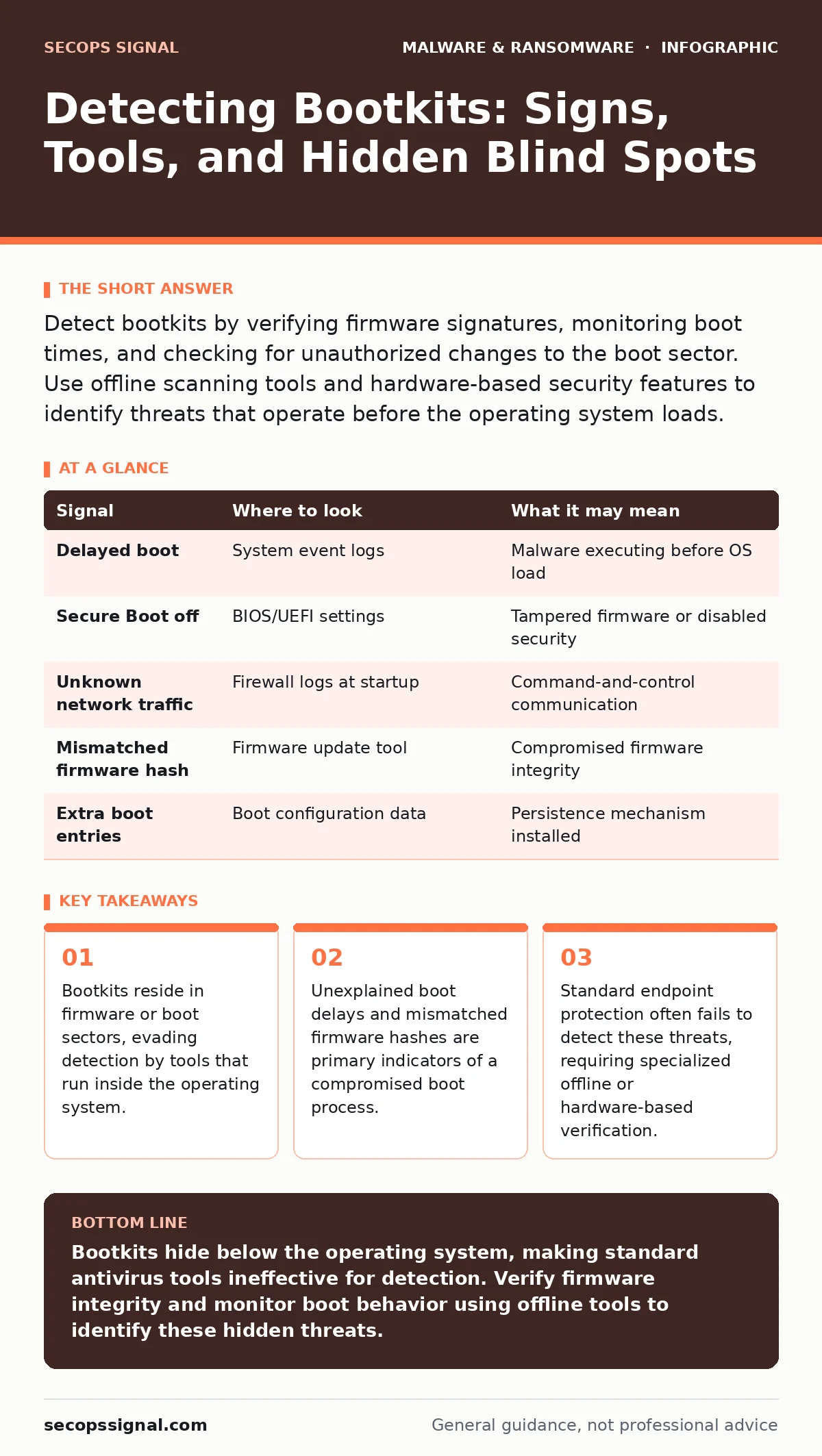
Detect bootkits by verifying firmware signatures, monitoring boot times, and checking for unauthorized changes to the boot sector. Use offline scanning tools and hardware-based security features to identify threats that operate before the operating system loads.
The Pre-OS Execution Environment
A bootkit modifies the early stages of the computer startup process to gain control before the operating system loads. This placement gives the malware root-level access that standard security software cannot reach. Because the operating system has not yet initialized, most antivirus programs are not running. The malware can hook into system calls and intercept data before the kernel takes over.
This technique allows the attacker to remain invisible to tools that depend on the operating system for visibility. You must look for evidence outside the normal software stack. Understanding this layer is the first step in detection.
Firmware Signature Verification
Modern computers use Unified Extensible Firmware Interface (UEFI) to manage the boot process. UEFI stores configuration data and boot loaders in non-volatile memory. Attackers target this memory to persist across operating system reinstalls. Verifying the integrity of this firmware is a primary detection method.
Many manufacturers provide tools to verify firmware signatures. These tools compare the current firmware against a known-good hash from the vendor. A mismatch indicates tampering. Some systems support Secure Boot, which refuses to load code that lacks a valid cryptographic signature. Disabling Secure Boot is a common requirement for many bootkits. If you find Secure Boot disabled on a system that should have it enabled, investigate immediately.
Boot Time and Behavior Anomalies
Malicious code adds processing overhead during the startup sequence. This often results in a noticeable delay before the login screen appears. The delay might be subtle, lasting only a few seconds, but it is consistent. You should establish a baseline for normal boot times on your devices.
Imagine a workstation that usually starts in ten seconds but now takes twenty. This change alone is not proof of infection, but it is a signal. Combine this observation with other indicators. Look for unusual network traffic immediately after the system powers on. Bootkits often communicate with command-and-control servers before the user logs in. This early communication is difficult to trace if you only monitor network activity during business hours.
Disk and Partition Inspection
Bootkits often infect the Master Boot Record (MBR) or the Volume Boot Record (VBR). These areas contain small programs that load the operating system. Inspecting these sectors for unexpected code is a direct detection method. You can use command-line tools to dump the contents of these sectors.
Comparing the dumped data against known good patterns helps identify modifications. Look for large blocks of code or unexpected references to external drives. Some bootkits hide their payload in unused sectors of the hard drive. These sectors are not part of any partition table. Standard file system scans ignore them. You need specialized tools that can read raw disk sectors to find these hidden payloads.
| Signal | Where to look | What it may mean |
|---|---|---|
| Delayed boot | System event logs | Malware executing before OS load |
| Secure Boot off | BIOS/UEFI settings | Tampered firmware or disabled security |
| Unknown network traffic | Firewall logs at startup | Command-and-control communication |
| Mismatched firmware hash | Firmware update tool | Compromised firmware integrity |
| Extra boot entries | Boot configuration data | Persistence mechanism installed |
The Limits of Endpoint Protection
Most endpoint detection and response (EDR) agents run as processes within the operating system. They rely on the kernel to provide visibility into system activities. A bootkit that hooks into the kernel can hide its own processes and files from the EDR agent. The agent sees what the malware allows it to see.
This limitation means that a clean scan from your standard antivirus does not guarantee safety. You need tools that operate independently of the host operating system. Live USB drives with security tools are effective for this purpose. They allow you to scan the system without loading the potentially compromised operating system.
Related to this, understanding how packers and crypters work helps explain why some bootkits evade signature-based detection. These tools compress and encrypt the malware payload, changing its appearance to security scanners. The bootkit unpacks itself only in memory, leaving no trace on the disk.
Common Blind Spots in Detection
One major blind spot is the assumption that the boot process is static. Firmware updates change the expected state of the system. If you do not update your baseline after a firmware update, you may miss subtle changes. Another blind spot is ignoring external boot devices.
Bootkits can reside on USB drives or network boot servers. When a computer boots from these sources, the malware loads into memory. If you only inspect the internal hard drive, you miss this vector. You must also consider the supply chain. Pre-installed firmware from manufacturers can sometimes contain vulnerabilities that allow for backdoors.
Imagine a scenario where a bootkit uses a legitimate firmware update mechanism to install itself. The update appears valid because it uses a stolen certificate. Standard verification tools might accept it. This is why you must monitor for any change in the firmware version, even if it appears to be a legitimate update.
Integrating Detection into Operations
Detecting bootkits requires a multi-layered approach. You must combine firmware verification, boot time monitoring, and offline scanning. Regularly update your baseline data to account for legitimate changes. Train your IT staff to recognize abnormal boot behavior.
Consider how offline backups can help in recovery. If a bootkit compromises your system, restoring from a clean backup is the most reliable solution. However, backups do not detect the threat. They only mitigate the damage. Detection must happen before you need to restore.
For teams without dedicated security staff, managed detection and response (MDR) services can provide the necessary expertise. These services monitor for anomalies that internal tools might miss. They can identify patterns across multiple systems, revealing threats that are invisible in isolation.
Maintenance and Verification
Regularly verify the integrity of your boot environment. This includes checking for unauthorized changes to boot order and firmware settings. Document the expected state of each system. When changes occur, have a process to verify their legitimacy.
Use hardware security modules where possible. These devices store cryptographic keys and can verify the integrity of the boot process. They provide a root of trust that software alone cannot match. Integrating these measures into your security strategy reduces the risk of undetected bootkits.
Remember that trojanized software can sometimes serve as the initial vector for a bootkit. Users may install legitimate-looking software that contains a hidden payload. This payload then installs the bootkit during the next reboot. Educating users on safe software practices is a necessary, though insufficient, control.
Key takeaways
- Bootkits reside in firmware or boot sectors, evading detection by tools that run inside the operating system.
- Unexplained boot delays and mismatched firmware hashes are primary indicators of a compromised boot process.
- Standard endpoint protection often fails to detect these threats, requiring specialized offline or hardware-based verification.
Bootkits hide below the operating system, making standard antivirus tools ineffective for detection. Verify firmware integrity and monitor boot behavior using offline tools to identify these hidden threats.
Frequently asked questions
Can a bootkit survive a Windows reinstall?
Yes, if it resides in the firmware or on a separate boot sector that the reinstall process does not overwrite.
How do I know if Secure Boot is enabled?
Check your BIOS or UEFI settings during startup. The option is usually labeled Secure Boot and should be set to Enabled.
Are all bootkits detectable?
No, some advanced bootkits use hardware vulnerabilities that are difficult to detect without specialized tools.
Should I disable external boot devices?
Yes, disabling USB and network boot in the BIOS reduces the risk of loading malware from external sources.
How this guide was produced: written by the SecOps Signal editorial team with AI assistance, checked against the public references listed below, and reviewed when the facts change. See our editorial policy or report an error.